Update (July 2026): the agent chat has since been removed from the site. :(
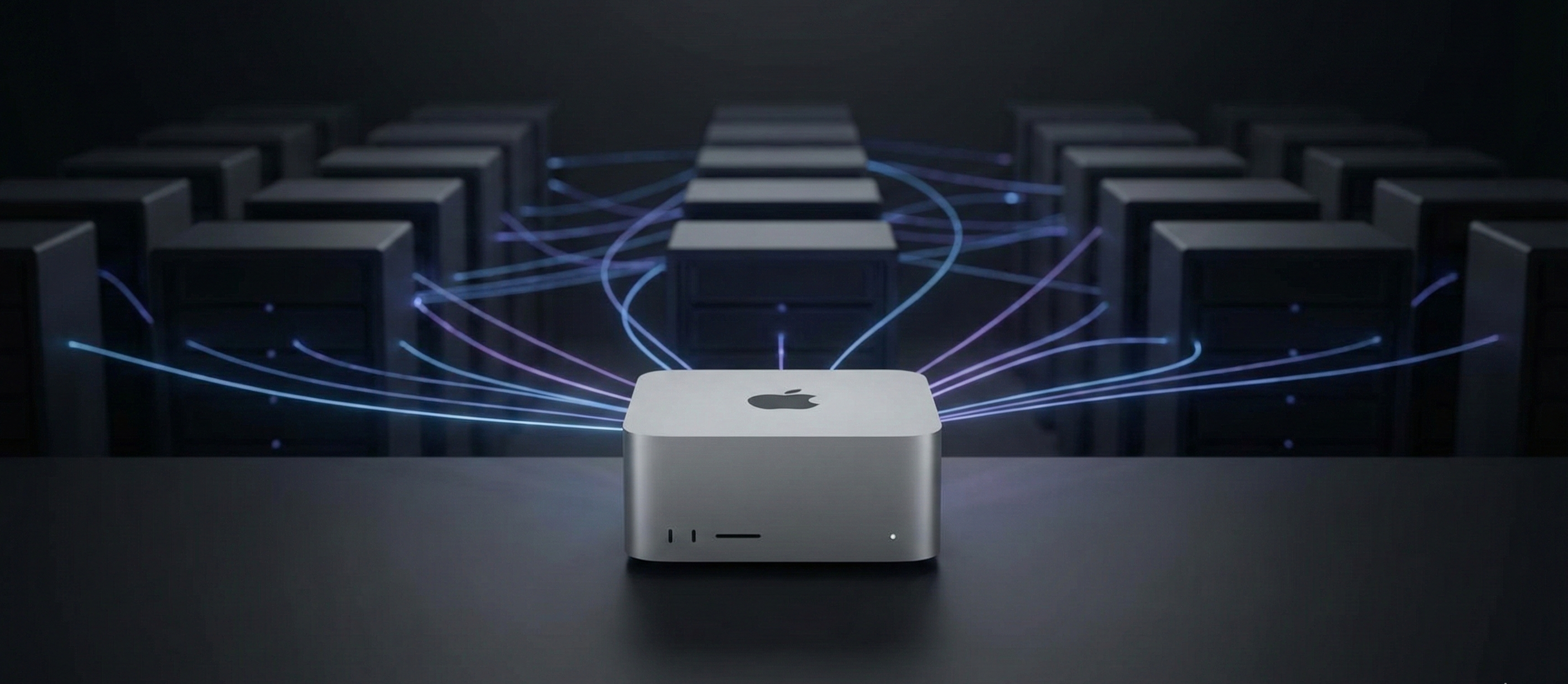
Did you know that you can text my Mac Studio when visiting my site?
The AI assistant on this site literally lives on my Mac Studio in my bedroom. It is powered by a lightweight open-weight model managed in LM Studio. The service sits behind a reverse proxy with Basic Auth, and is exposed via a Tailscale Funnel domain. To keep my local machine from being overwhelmed—as it is not a large scale LLM infrastructure—I used Redis to enforce a global rate limit.
Prerequisites
If you are following along, here is what you will need to know:
- Docker Desktop: or any other container runtime.
- Node.js: A basic understanding of Javascript/Typescript.
- Redis: For rate limiting implementation.
- LM Studio: For hosting the LLM models.
- Nginx: For the reverse proxy and authorization.
- Tailscale and Funnel: For the secure tunnel to local "servers".
Note: if this page gets overloaded with chat traffic, my sincere apologies for you not able to chat. Please try again later.
Architecture Breakdown
Here is the architecture behind this setup:
This setup allows me to self-host a powerful LLM without paying for model API credits, while at the same time, ensuring my home network remains secure.
1. The Gateway (Next.js & Redis)
The entry point for a chat request is a standard Next.js API route. Before any request can be forwarded to my home server, it passes through a strict rate limiting check backed by Redis.
This is crucial because my Mac Studio is a consumer device, not a scalable cluster (yet).
Here, the blog backend exposes a POST chat route, which streams chat tokens back to the blog on the frontend, our chat interface component. Before the protected route proceeds with the chat request, the backend first communicates with Redis to shed load:
// app/api/chat/route.ts
export async function POST(req: Request) {
  // 1. Global Circuit Breaker
  // Protects the Mac Studio from total overload across all users
  const globalLimitResponse = await globalRateLimit();
  if (globalLimitResponse) return globalLimitResponse;

  // 2. Per-visitor Rate Limiting
  // Ensures fair usage for individual visitors.
  const limitResponse = await rateLimit(req);
  if (limitResponse) return limitResponse;

  // ... make the request to LM Studio
  // ... See section 5. The Brain.
}
The rate limiting logic is two-fold, implementing both a global circuit breaker and a per-user limiter:
- Global Circuit Breaker: This protects my Mac Studio from being crushed if the site goes viral or gets accidentally DDOS'd. It limits the total number of requests across all users.
- Per-visitor Limiting: This ensures fair usage, preventing one user from hogging all the GPU cycles.
The implementation uses a Lua script to ensure atomicity. This prevents race conditions where a key might be incremented but fail to expire, potentially blocking a user forever.
// lib/rate-limit.ts
async function atomicRateLimit(key: string, windowSeconds: number) {
  // Atomic Increment + Expire using Lua
  const script = `
    local current = redis.call("INCR", KEYS[1])
    if current == 1 then
        redis.call("EXPIRE", KEYS[1], ARGV[1])
    end
    return current
  `;
  return Number(await redis.eval(script, 1, key, windowSeconds));
}
export async function rateLimit(
  req: Request,
  key: string,
  perMinLimit: number,
) {
  // Identify stranger. Any id that uniquely identify a visitor works here.
  const id =
    req.headers.get("x-thumbmark-id") ||
    req.headers.get("x-forwarded-for") ||
    "anonymous";
  const redisKey = `${key}_rate_limit:${id}`;

  const currentUsage = await atomicRateLimit(redisKey, 60 /* seconds */);
  if (currentUsage > perMinLimit) {
    return NextResponse.json({ error: "Too many requests" }, { status: 429 });
  }

  return null;
}

export async function globalRateLimit(perMinLimit: number) {
  const currentUsage = await atomicRateLimit(
    `global_rate_limit`,
    60 /* seconds */,
  );
  if (currentUsage > perMinLimit) {
    return NextResponse.json({ error: "Too many requests" }, { status: 429 });
  }

  return null;
}
2. "The Tunnel" (Tailscale Funnel)
Since my Mac Studio resides behind a residential NAT, I use
Tailscale Funnel to securely expose the
NGINX server to the public internet. Tailscale assigns a stable public DNS name
(e.g., lmstudio.secret-machines.ts.net) that accepts encrypted HTTPS traffic
and tunnels it to my machine (mac.secret-machines.ts.net) within the private
secret-machines Tailnet.
3. The Guard (Nginx)
I don't expose the LM Studio server directly. Instead, Nginx acts as a reverse proxy to enforce Basic Authorization, so only an authorized Next.js backend can talk to it, since LM Studio doesn't provide authentication out of the box.
4. All together in Docker Compose
Both the tailscale funnel, and the nginx server are then hosted in a Docker
compose setup. I use network_mode: service:lmstudio-tailscale for the Nginx
container. This forces Nginx to share the same network stack as the Tailscale
container, allowing it to communicate directly over the Tailnet without complex
port mapping.
Here is the file structure:
docker_compose_config
├── .env
├── config
│   ├── nginx.conf
│   └── ts.json
├── docker-compose.yaml
└── state
    └── tailscale
And the content of the files:
config/nginx.conf
# config/nginx.conf

resolver 8.8.8.8;

# Upstream block for custom hostname mapping
upstream custom_backend {
    # Map custom hostname to a specific machine address:port
    # Note:
    #    - lmstudio.secret-machines.ts.net is the public hostname
    #    - mac.secret-machines.ts.net is the private hostname
    #
    # This is the actual address of LM Studio.
    server mac.secret-machines.ts.net:1234;
}

# KEEP SECRET! In a real production environment, do not commit secrets to Git.
# Ideally, inject these or use an auth service. For this home setup, ensure this file is git-ignored.
# These tokens hardcoded are the way to access our LM Studio API.
map $bearer_token $is_authorized {
    default 0;
    "1deadbeef" 1;
    "2deadbeef" 1;
    "3deadbeef" 1;
}

server {
    listen 80;

    # Proxy requests to the custom backend
    location / {
        proxy_pass http://custom_backend;
        proxy_set_header Host $host;
        proxy_set_header X-Real-IP $remote_addr;
        proxy_set_header X-Forwarded-For $proxy_add_x_forwarded_for;
        proxy_set_header X-Forwarded-Proto $scheme;

        # Bearer Token Check
        set $bearer_token "";
        if ($http_authorization ~* "^Bearer (.+)$") {
            set $bearer_token $1;
        }

        # If not authorized, return 401 Unauthorized
        if ($is_authorized = 0) {
            return 401 "Unauthorized";
        }

        # CORS headers
        add_header 'Access-Control-Allow-Origin' '*' always;
        add_header 'Access-Control-Allow-Methods' 'GET, POST' always;
        add_header 'Access-Control-Allow-Headers' 'DNT,User-Agent,X-Requested-With,If-Modified-Since,Cache-Control,Content-Type,Range,Authorization' always;
        add_header 'Access-Control-Expose-Headers' 'Content-Length,Content-Range' always;

        # Handle preflight requests
        if ($request_method = 'OPTIONS') {
            add_header 'Access-Control-Allow-Origin' '*';
            add_header 'Access-Control-Allow-Methods' 'GET, POST';
            add_header 'Access-Control-Allow-Headers' 'DNT,User-Agent,X-Requested-With,If-Modified-Since,Cache-Control,Content-Type,Range,Authorization';
            add_header 'Access-Control-Max-Age' 1728000;
            add_header 'Content-Type' 'text/plain; charset=utf-8';
            add_header 'Content-Length' 0;
            return 204;
        }
    }
}
Be careful with commiting this online, this hardcodes API keys in the config file. In a production set up, this should be carefully injected via .env, ideally.
config/ts.json
Next, we set up our tailscale config for funneling requests from https://lmstudio.secret-machines.ts.net to our nginx server. Note the line "Proxy": "http://127.0.0.1:80" where 80 is the port the nginx operates on within the Docker container.
// config/ts.json
{
  "TCP": {
    "443": {
      "HTTPS": true
    }
  },
  "Web": {
    "${TS_CERT_DOMAIN}:443": {
      "Handlers": {
        "/": {
          "Proxy": "http://127.0.0.1:80"
        }
      }
    }
  },
  "AllowFunnel": {
    "${TS_CERT_DOMAIN}:443": true
  }
}
docker-compose.yaml
And finally, the docker-compose.yaml file that ties everything together. Note
that the TS_AUTHKEY is stored in the .env file, which is the client secret
used to authenticate the funnel creation.
# docker-compose.yaml
services:
  nginx:
    container_name: lmstudio-nginx
    image: nginx:latest
    volumes:
      # Mount our custom Nginx configuration
      - ./config/nginx.conf:/etc/nginx/conf.d/default.conf
    network_mode: service:lmstudio-tailscale
    restart: unless-stopped

  lmstudio-tailscale:
    image: tailscale/tailscale:latest
    container_name: lmstudio-tailscale
    hostname: lmstudio
    environment:
      - TS_AUTHKEY=${TS_AUTHKEY}
      - TS_EXTRA_ARGS=--advertise-tags=tag:container
      - TS_SERVE_CONFIG=/config/ts.json
      - TS_STATE_DIR=/var/lib/tailscale
    volumes:
      - ./state/tailscale:/var/lib/tailscale
      - ./config:/config
    devices:
      - /dev/net/tun:/dev/net/tun
    cap_add:
      - net_admin
      - sys_module
    restart: unless-stopped
Set up Tailscale Auth Key
To get a TS_AUTHKEY from Tailscale, head over to the Settings page on Tailscale.
Navigate to Tailnet Settings > Trust Credentials.
Click "Add Credentials", select "OAuth", and continue to select scope: add both Read and Write to "Auth Keys" scope, then assign a tag: "tag:container" so any new Docker containers will have this tag (for ACL purposes).
Then, grab the client secret from the dialog after creation. Store it in the
.env file as TS_AUTHKEY. For example,
.env
// .env
TS_AUTHKEY="tskey-client-ABC123CNTRL-YKjs198LKSM"
Now you might ask?
Why not host LM Studio or another provider in a Docker container too?
Mostly for performance. Docker on macOS does not currently support Metal GPU passthrough. Running the model inside a container would force it to use the CPU, which is significantly slower. Running LM Studio natively on the host leverages the full power of the Apple Silicon GPU.
Another reason is LMStudio is also super convenient to bootstrap a model serving API, and managing models as well.
Start the containers
And finally, from within the container config directory, start the containers:
// Start the containers
docker compose up -d
5. The Brain (LM Studio)
Finally, on our Mac Studio, configure it to have the hostname mac,
referenceable by mac.secret-machines.ts.net within the Tailscale network.
Also, install LM Studio and run it in server mode.
Download your preferred model from LMStudio, and head over to the Developer
tab, and click the 'Start Server' button. The API operated by LMStudio will
mimic the OpenAI API format, so my frontend code remains agnostic to the
underlying provider.
Next, we're going to use the entire API setup!
From nextjs backend, I'm calling the v1/responses endpoint, a stateful chat
endpoint, to send messages to the model:
// Sending the request to the home server
const payload: Record<string, unknown> = {
  model: "nvidia/nemotron-3-nano", // The model currently running on the server
  input: upstreamInput,
  stream: true,
  temperature: 0.7,
  mode: "thinking",
  store: true,
  reasoning: {
    effort: "medium",
    summary: "auto",
  },
};

if (previous_response_id) {
  payload.previous_response_id = previous_response_id;
}

const response = await fetch(
  "https://lmstudio.secret-machines.ts.net/v1/responses",
  {
    method: "POST",
    headers: {
      "Content-Type": "application/json",
      // Secret key for Basic Auth, set up above.
      Authorization: `Bearer 1deadbeef`,
    },
    body: JSON.stringify(payload),
  },
);
And that's it! We should now have a home server running on your Mac Studio that streams tokenized responses from the LLM model to the blog.
As of now, the LLM model behind it is the NVIDIA/nemotron-3-nano
What's Next?
I'm looking into adding a retrieval-augmented generation (RAG) tool calls, and other tool-driven capabilities so the model can read my other blog posts, or perhaps switching to a lighter model to save energy.
As of right now, each conversation is context heavy, but I'm super happy with the results!